
The Channels Tab
The Channels tab is where you manage your scanner's memory: rename channels, change frequencies, set tones, lock out the noisy frequencies, and reorder them. When you're done, you push your changes back to the radio.
Your edits don't reach the scanner until you press "Upload Changes." Everything you change here is held as a draft, a pending change stored in the app, until you upload it. Batching this way lets you make a set of changes and review them before they go to the scanner. (More on this below.)
Banks: the sidebar
Your channels are organized into 10 banks, evenly split. A BC125AT-family scanner has 500 channels in banks of 50 (channels 1 to 50 are Bank 1, 51 to 100 are Bank 2, and so on); a BC75XLT has 300 in banks of 30. The left sidebar has a button for each bank.
Click a bank to see its channels. Only one bank shows at a time; the app opens on Bank 1. The selected bank is highlighted, and its number appears next to the "Bank Channels" heading.
To name a bank, select it and click the pencil beside it. Type a name of up to 16 characters, like Ham, Air, or Work, then press Enter or click away to save it (Esc cancels). Clear the name to go back to a plain number. The name replaces "Bank Channels" as the heading, and it also shows under that bank's button on the Scan tab and in the Locked Channels bank filter.
The scanner has nowhere to store bank names, so Bearpaw keeps them, separately for each scanner you connect. Until a scanner has connected, there's no pencil.
These sidebar buttons choose which channels you're looking at and editing. They're different from the bank buttons on the Scan tab, which turn banks on and off for scanning.
The channel list
Each row is one channel. The columns, left to right:
On a BC75XLT you'll see fewer columns. That scanner doesn't store channel names, per-channel modulation, or tone, so TAG, MODE, and TONE aren't shown — there'd be nothing to put in them. Search matches on frequency alone, and DLY is a simple on/off rather than a number of seconds.
| Column | What it means |
|---|---|
| ⠿ | A grip. Grab it to move the channel within its bank (see Moving channels). |
| CH | The channel number (1 to 500, or 1 to 300 on a BC75XLT). Click it to select the row. |
| FREQ | The frequency, in MHz (e.g. 146.8500). |
| TAG | The channel's name (its alpha tag), or a dash if unnamed. |
| MODE | The modulation: AUTO, FM, AM, or NFM. |
| TONE | The CTCSS tone in Hz, or a dash for none. |
| DLY | The delay in seconds before the scanner resumes after a transmission. |
| L/O | A red lock icon if the channel is locked out (skipped when scanning). |
| PRIO | A glowing dot if this is the bank's priority channel. |
The list works like a spreadsheet: you edit right in the cells.
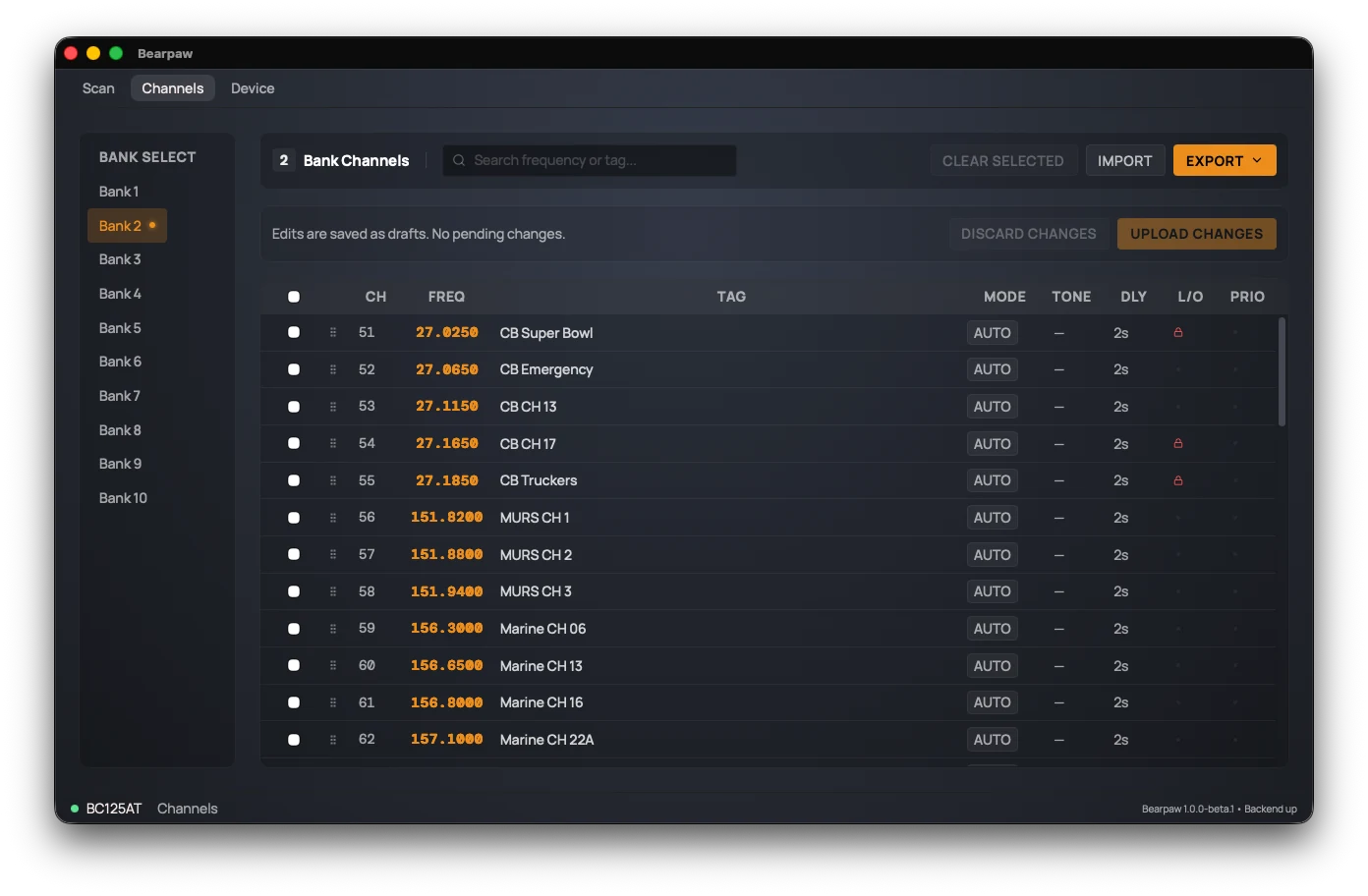
Editing a channel
Click a cell and start typing to replace what's in it, or press Enter (or double-click it) to change what's there. Enter keeps your edit and moves down a row, and Tab keeps it and moves right. Hold Shift to go the other way, or press Esc to cancel.
A few cells aren't typed into. MODE opens a list, and so does DLY on a BC125AT-family scanner. L/O flips on and off with Enter or Space, and so does DLY on a BC75XLT.
A value the scanner can't take stays in the cell and turns red. Point at the cell to read why. The strip above the list counts the red cells, and Upload Changes waits until you've fixed every one.
Frequency (MHz) has to fall inside a band your scanner can tune, and that depends on the model:
- BC125AT, BCT125AT, AE125H: 25 to 54, 108 to 174, 225 to 380, and 400 to 512.
- UBC125XLT: 25 to 88, 108 to 174, 225 to 512, and 806 to 960. The UBC126AT is the same except its third band runs to 520.
- BC75XLT: 25 to 54, 108 to 174, and 406 to 512.
Clearing the frequency, or entering 0, empties the whole
channel.
Alpha Tag is the channel's name, up to 16 characters.
Modulation is one of AUTO, FM, AM, or NFM (narrow FM). AUTO lets the scanner choose based on the frequency.
Tone Squelch (CTCSS Hz) sets a CTCSS tone so the scanner only opens on transmissions carrying that tone. Leave it blank for none. The app accepts only the standard CTCSS tones (67.0 to 254.1 Hz) and turns anything else red.
Delay (seconds) is how long the scanner waits on a channel after a transmission ends before it resumes scanning, giving you time to hear a reply. Choose from -10, -5, 0, 1, 2, 3, 4, 5. The negative values are pre-delays: the scanner holds before the next transmission.
Lockout is on or off. On means the scanner skips this channel.
Priority applies to the scanner the moment you click it, rather than waiting for Upload. The radio allows one priority channel per bank, so turning it on where another channel already has it asks you to confirm the move. (More on priority in the Glossary.)
On a BC125AT-family scanner, taking priority off a channel means erasing it and writing it back without the flag, and the confirmation says so. A BC75XLT can't take priority off a channel at all. To move it, click PRIO on another channel in the same bank, and the radio moves it for you.
Selecting rows
Click a channel number to select its row, and Shift-click another number to select everything between. ⌘+A (Ctrl+A on Windows and Linux) selects the whole bank.
Delete clears the selected cells. A cleared FREQ cell empties its whole channel. A cleared MODE cell goes back to AUTO, and a cleared L/O cell turns off. DLY and PRIO cells don't change. To empty entire rows instead, select them and use Clear Selected in the toolbar.
Copy and paste
Copy cells from Excel, Numbers, or Google Sheets, click the cell where they should start, and paste. Columns fill left to right from there, skipping PRIO. A single value pasted over a selection fills every selected cell.
If your first row is a header, columns match by name instead, in any
order. Bearpaw knows Frequency, Tag,
Mode, Tone, Delay, and
Lockout, plus a few short forms like Freq
and DLY. A header can also include Channel,
Bank, or Priority, which are skipped, and
a BC75XLT skips Tag, Mode, and Tone too. If any heading is something
else, Bearpaw treats that row as data.
A paste becomes drafts like any other edit. It stops at the last row of the bank and tells you how many rows didn't fit. It won't paste while a search is active.
Drafts and uploading (the important part)
Between the toolbar and the channel list is a status strip that reads either "Edits are saved as drafts. No pending changes." or "…N pending.", next to two buttons: Discard Changes and Upload Changes.
- Edit one or more channels. Each saved edit becomes a draft. Rows with pending changes get a colored bar down their left edge, and the pending count ticks up.
- Review. Nothing has touched the radio yet. Edit more, or change your mind.
- Upload. Press Upload Changes. The app writes your drafts to the scanner, then re-reads the channels to confirm they took. The button reads "Uploading…" while it works.
To throw away all your pending edits without uploading, press Discard Changes (it asks you to confirm first).
Drafts last only while Bearpaw is open, and they're thrown away when a different scanner connects. Upload before you quit or swap scanners.
When an upload fails
A message names the first channel that didn't take, and why. Anything that didn't land stays pending, so fix the problem and press Upload Changes again.
A move that fails can leave the scanner holding one channel twice, with the pending draft as the only copy of the other. Upload again before you discard anything.
The toolbar
Across the top of the tab:
- Search box: filter the current bank by frequency or name. Moving and pasting are off while a search is active, because a filtered list skips channels and rows would land in the wrong places.
- Clear Selected: empties the selected rows, after asking. Like edits, this creates drafts; nothing is wiped from the radio until you upload.
- Import / Export: move channels between the scanner and a file. Both work in two formats, CSV and native Uniden. See Import and export below.
Moving channels
Drag a row by its grip (⠿) and let go where you want the channel to land. From the keyboard, focus the grip, press Enter or Space to pick the row up, move it with the arrow keys, and press Enter, Space, or Esc to put it down. Putting it down keeps the move, even with Esc, so use Discard Changes to undo one.
To move several rows at once, select them and press Option+Shift+↑ or ↓ (Alt+Shift on Windows and Linux).
A move is a draft, marked with a colored bar, and goes to the radio on your next Upload Changes. Channels only move within their bank, and not while a search is active.
Import and export
Your channels don't have to live only in the radio. Bearpaw reads and writes them to files, in two formats, so you can back them up, edit them at your desk, or hand them off to other software.
The two formats
CSV is a plain spreadsheet: one row per channel, with columns for frequency, tag, mode, tone, delay, and lockout. Open it in Excel, Numbers, or Google Sheets, make bulk edits, and load it back in.
Native Uniden (a .bc125at_ss file) is the
same format the official Sentinel software reads and writes. It's a full
snapshot: all 500 channels and the scanner's settings. Because
it speaks Sentinel's own language, you can move a channel set between
Bearpaw and Uniden's software in either direction, or keep one as a
complete backup of the radio. Exporting it takes a few seconds longer
than CSV.
Exporting
Export saves your channels to a file. Pick
CSV for just the channel list, or your radio's
settings file for the full backup. The app writes
channels.csv, scanner.bc125at_ss or
scanner.bc75xlt_ss and lets you choose where it goes.
The settings-file format is the one Uniden's own software uses, and
there is one per radio family: .bc125at_ss describes a
500-channel BC125AT-family radio, .bc75xlt_ss a
300-channel BC75XLT. Bearpaw offers whichever matches the scanner
that's plugged in.
Export needs the full channel list first. If Bearpaw hasn't finished reading your scanner, it stops and asks you to sync — a backup written from a half-read list looks complete without being complete, and you would only find out when you tried to restore it.
Importing
Import loads channels from a file, and reads either format automatically. A CSV brings in just the channels it lists. A settings file brings in everything it holds and overwrites all channels and settings on the radio, so the app asks you to confirm before it does.
A settings file is a complete picture of the radio, not a list of additions. Restoring one makes the scanner match the file exactly. Where the file records a channel as empty, Bearpaw erases that channel on the radio — including channels you programmed after you saved the file. Restore a file saved from a blank scanner and you clear every channel.
If you only want to add channels without touching the rest, use a CSV instead.
The easiest CSV to import is one Bearpaw exported, because its headings are already right. If you build one yourself:
-
Headings have to match Bearpaw's exactly, capitals included. Only
IndexandFrequencyare required. -
Indexis the channel number the row overwrites, and it decides the bank. ChangingBankdoes nothing. - A row with a frequency of 0 is skipped, not cleared.
-
A missing
Delaymeans 2 seconds, which a BC75XLT refuses. For that scanner, include aDelaycolumn of 0 or 1.
Import writes straight to the scanner. Unlike a hand edit, it isn't held as a draft: the file's channels are written to the radio as the import runs, with a progress bar covering the screen while it works. A full settings-file restore writes every channel slot, empty ones included, so it takes a few minutes. When it finishes, Bearpaw re-reads the channels so the list matches what's now in the radio.
Refreshing from the scanner (memory sync)
Your channels are read from the scanner when the app starts. This memory sync takes about five seconds, because the scanner hands over its channels one at a time. A panel covers the screen with a progress bar while it runs — the scanner stops scanning for the duration, so the app says so rather than pretending otherwise.
Bearpaw also keeps a saved copy of your channels between sessions, so the list can appear instantly at launch instead of after a sync. Whether it re-reads the scanner anyway is up to you — see Re-read Channels on Connect. It's on by default.
How old is this list?
Next to the search box, Bearpaw shows when it last read your channels from the scanner — Synced 3d ago, or Synced just now. The same note sits at the bottom of the window beside the connection status.
It matters because the scanner never tells the app when something changes. It answers questions and volunteers nothing. So if you program a channel on the radio's own keypad while Bearpaw is closed, the saved copy is out of date and nothing on screen looks wrong — the timestamp is the tell.
Press Refresh beside that timestamp to re-read the scanner. Scanner → Sync Memory in the menu (or Ctrl/⌘ + Y) does the same thing.
Bearpaw re-reads each channel from the scanner just before writing to it, and keeps the scanner's values for every field you didn't change. So editing the tag on a channel whose frequency you retuned at the keypad won't normally put the old frequency back. If that read fails, though, the upload uses the older values from the list. If you've changed channels on the radio, press Refresh before you edit them.
Did this help? Your support keeps me building Bearpaw and buys the scanners it learns to work with next. Support Bearpaw